00 SD Creator: How To Set Up And Use The SD Creator For Obtaining Vehicle Software Updates Via The MIRRORSERVER (GROUP 00, NO. 23-82)
Reference number: GROUP 00, NO. 23-82
Supersedes refnos: 2047812/1, 2047812/2, 2047812/3, 2047812/4, 2047812/5, 2047812/6, 2047812/7, GROUP 00, NO. 17-06, GROUP 00, NO. 17-93, GROUP 00, NO. 17-96, GROUP 00, NO. 18-10, GROUP 00, NO. 19-15, GROUP 00, NO. 19-22
00 SD CREATOR: HOW TO SET UP AND USE THE SD CREATOR FOR OBTAINING VEHICLE SOFTWARE UPDATES VIA THE MIRRORSERVER
TECHNICAL SERVICE BULLETIN
| AUDI: | 2010-2024 All Audi Vehicles |
| GROUP: | 00 - General |
SERVICE INFORMATION
00 23 82 2047812/7 December 22, 2023. Supersedes Technical Service Bulletin Group 00 number 19-22 dated June 25, 2019, for reasons listed below.
| Model(s) | Year | VIN Range | Vehicle-Specific Equipment |
|---|---|---|---|
| All Audi Vehicles | 2010 - 2024 | Not Applicable | Not Applicable |
CONDITION
| Revision | Date | Purpose |
|---|---|---|
| 7 | - | Revised header (added new models and model years) |
| 6 | 06/25/2019 | Revised header (Added MY2021 and model) Revised Technical Background (Updated information) Revised Service (Updated link and added MIB2+) |
| 5 | 01/14/2019 | Revised Service (Updated link) |
The purpose of this bulletin is to explain the SD Creator program: how to set the program up and use it.
TECHNICAL BACKGROUND
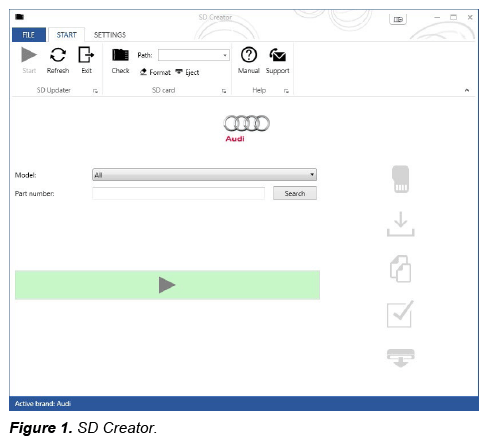
All software updates for MMI and FPK from MY15 onward will be available using the SD card creator as long as the MMI is of the MIB platform. Some MMI3G+ software updates are also available for download (Figure 1). The Service section explains the process of setting up and using the SD Creator program. If the program cannot be installed due to IT restrictions, then the SD Cards containing the software updates are available for purchase via the Parts department.
PRODUCTION SOLUTION
Not applicable.
SERVICE
Required equipment:
- ODIS Service with VAS tester (SD Creator program can only run on a VAS tester with the ODIS Service at the Dealership).
- If using a 6150A, an USB-to-SD card reader will need to be used due to the slow read rate of the internal SD card slot of the 6150A. See the section below titled "6150A SD Card Slot Slow Read Rate Issue".
- Valid MirrorServer Certificate installed on a VAS tester with the ODIS Service (certificate must not be expired).
- Blank SD card, with enough capacity, to download the software update files (each update requires a separate SD card).
- Part number of the software update. This is the service part number for the SD card in ETKA. The part number can be found in the TSB or within ETKA.
Time to set up the program for the first time on the ODIS machine:
- Approximately 5 minutes.
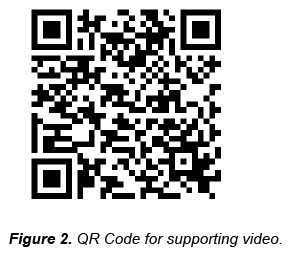
Please see the following video: https://audi-external.kzoplatform.com:443/swf/player/341 (Figure 2).
Time to download software onto SD card:
- The time varies based on the size of the software update files & the type of internet connection. Typical download time is around 30 minutes to 1 hour with a 3MB/s stable download connection. Keep in mind your times can vary greatly based on the time of day due to heavy usage periods for the Internet Service Provider.
How to select the correct SD Card:
The first step is to obtain a blank SD card with enough space required for the software update. Typical SD card sizes are listed below, but always reference the original TSB which suggests the software update. When the download process is started, the SD Creator program will format and wipe all data from the SD card. Please make sure to back up any important data which is already installed on the SD card before starting the download process. It is important to note the download process cannot be started without an SD Card installed in the VAS tester with ODIS Service.
- MIB1 High: 2-4GB
- MIB2 High Scale: 2-4GB
- MIB2 High Navigation: 4-8GB
- MIB2+ High Navigation: 4-8GB
- RMC: 2-4GB
- MMI3G+: 0.5GB (500MB)
- FPK: 1-2GB
6150A SD Card Slot Slow Read Rate Issue:
The internal SD card slot on a 6150A cannot be used due to the slow read rate. The SD Creator will not allow any SD card to be used when placed in the internal SD card slot of a 6150A due to the slow read rate of the slot. Alternatively, the user can use a USB-to-SD card adapter that can be inserted into one of the USB 2.0 ports of the computer. When choosing an adapter, ensure the adapter is at least USB 2.0 compliant (USB 3.0 will work as well).
Installing the SD Creator (IT Administrator help may be required):
- Using a VAS tester with ODIS Service, open a web browser and navigate to https://mirrorserver2.vwhub.com/dav/BTAC/Trade-Retail/Tools/SD-Creator/.
- If prompted for a security certificate then select the MirrorServer certificate for the machine.
- Within this folder, you will find the "SD Creator" install program labeled "setup_ V1.1.7.7.exe". Click on this file and save it to the desktop or another folder on the machine. If you are unable to download this file then please contact your IT administrator.
- Once the file has successfully downloaded, install the program onto the VAS tester with ODIS Service by double-clicking the file labeled "setup_ V1.1.7.7.exe". If IT policies restrict the installation of programs on the VAS tester with ODIS Service then please ask the IT administrator to perform the install.
- The AUDI AG created installation instructions and user manual are located in the same directory and is labeled "2017_03_21_Benutzerhandbuch_SD_Creator_V_1.0_EN_.pdf".
Once the program is installed it will place an icon labeled "SD Creator" on the desktop:
- Open the application by double-clicking the icon.
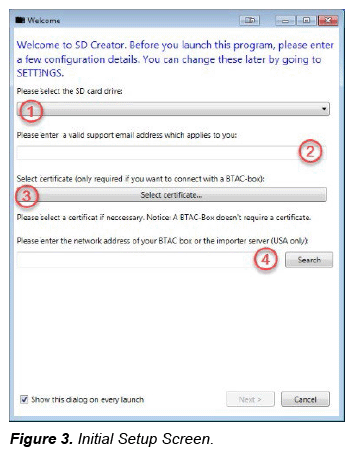
- When prompted, select the drive letter for the SD card (Figure 3 - item 1).
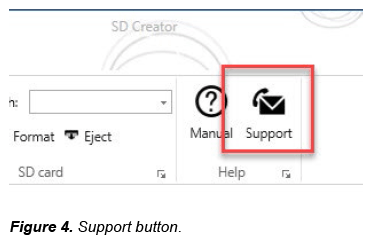
- Enter the support email address, "SDCreatorSupport@audi.com" (Figure 3 - item 2).
- Select the MirrorServer certificate by selecting "Select certificate..." (Figure 3 - item 3).
- Enter the MirrorServer address (Figure 3 - item 4) by using "https://mirrorserver2.vwhub.com" (without quotes). Once set, the user can later verify this setting in the server section listed under the "settings" tab.
- Select "Audi" in the "Brand" drop-down menu after item 4.
- Uncheck the box for "Show this dialog on every launch" and select "Next".
USING THE SD CREATOR TO DOWNLOAD THE SOFTWARE UPDATE FILES
- You will need the SD card part number listed in the Required Parts and Tools section of the original software update TSB or by searching ETKA.
- Enter this part number into the "Part number" field with NO SPACES. The program will automatically find the software files on the MirrorServer if entered correctly.
- For instance, if the SD card part number is 4M0 906 961 AE, then enter "4M0906961AE" into the part number field. The program will automatically divide the part number and insert periods.
- Reference pages 15-18 of the user manual if you have any troubles with using the program.
- "2017_03_21_Benutzerhandbuch_SD_Creator_V_1.0_EN_.pdf".
Typical setup time to download the data and have a working SD card is about 30 minutes to Ihr depending on network speed. *Because of this, prepare the SD card long before starting the repair.*
Steps used by SD Creator once the download is started:
- When you select the "Play/Start" button, the program will first format the SD card
- Next, the program will start the download of software files from the MirrorServer and save them on the local hard drive. Each file is broken up into approximately 100MB chunks and the program will check the files one-by-one to ensure they are not corrupted. If the internet connection is interrupted during the download, then any of the files can become corrupted. If this happens the entire process will need to be started over, beginning with the part number entry.
- Once all the files are downloaded, they will be unpacked to the hard drive and extracted to the SD card.
- The files are encrypted, thus you cannot manually unpack the files. The SD Creator program must perform the unpacking.
- The SD Creator will attempt to eject the SD card. Sometimes this fails. If this happens, then manually eject the card from the ODIS machine.
- From this point, the SD card is okay to use in the MMI.
WARRANTY
This TSB is informational only and not applicable to any Audi Warranty.
ADDITIONAL INFORMATION
All parts and service references provided in this TSB (2047812) are subject to change and/or removal. Always check with your Parts Department and/or ETKA for the latest information and parts bulletins. Please check the Repair Manual for fasteners, bolts, nuts, and screws that require replacement during the repair.
©2023 Audi of America, Inc. All rights reserved. The information contained in this document is based on the latest information available at the time of printing and is subject to the copyright and other intellectual property rights of Audi of America, Inc., its affiliated companies, and its licensors. All rights are reserved to make changes at any time without notice. No part of this document may be reproduced, stored in a retrieval system, or transmitted in any form or by any means, electronic, mechanical, photocopying, recording, or otherwise, nor may these materials be modified or reposted to other sites without the prior expressed written permission of the publisher.