91 MIB3: Software Update Instructions (GROUP 91, NO. 25-57)
Reference number: GROUP 91, NO. 25-57
Supersedes refnos: 2060523/1, 2060523/2, 2060523/3, 2060523/4, GROUP 91, NO. 20-05, GROUP 91, NO. 23-63, GROUP 91, NO. 24-37
91 MIB3: SOFTWARE UPDATE INSTRUCTIONS
TECHNICAL SERVICE BULLETIN
| AUDI: | 2020-2025 A4, A4 allroad, S4, A5 Sportback, and S5 Sportback; 2020-2024 A5, A5 Cabriolet, S5, and S5 Cabriolet; 2021-2025 RS 5 Sportback, A6, A6 allroad, S6, RS 6 Avant, A7, S7, RS 7, A8, S8, Q3, Q5, Q5 e quattro, Q5 Sportback, SQ5, SQ5 Sportback, Q7, SQ7, Q8, SQ8, and RS Q8; 2021-2024 RS 5; 2021-2023 e-tron, and e-tron Sportback; 2021-2022 A7 e quattro; 2021 A8 e quattro; 2022-2025 A3, S4, e-tron GT, RS e-tron GT, Q4 e-tron, and Q4 Sportback e-tron; 2022-2024 RS 3; 2024-2025 Q8 e-tron, Q8 Sportback e-tron, SQ8 e-tron, SQ8 Sportback e-tron |
| GROUP: | 91 - Radio, Telephone, Board Computer, Multi-Function Indicator (MFI) |
SERVICE INFORMATION
91 25 57 2060523/4 April 22, 2025. Supersedes Technical Service Bulletin Group 91 number 24-37 dated August 9, 2024, for reasons listed below.
| Model(s) | Year | VIN Range | Vehicle-Specific Equipment |
|---|---|---|---|
| A4, A4 allroad, S4, A5 Sportback, and S5 Sportback | 2020 - 2025 | All | MIB3 |
| A5, A5 Cabriolet, S5, and S5 Cabriolet | 2020 - 2024 | ||
| RS 5 Sportback, A6, A6 allroad, S6, RS 6 Avant, A7, S7, RS 7, A8, S8, Q3, Q5, Q5 e quattro, Q5 Sportback, SQ5, SQ5 Sportback, Q7, SQ7, Q8, SQ8, and RS Q8 | 2021 - 2025 | ||
| RS 5 | 2021 - 2024 | ||
| e-tron, and e-tron Sportback | 2021 - 2023 | ||
| A7 e quattro | 2021 - 2022 | ||
| A8 e quattro | 2021 | ||
| A3, S4, e-tron GT, RS e-tron GT, Q4 e-tron, and Q4 Sportback e-tron | 2022 - 2025 | ||
| RS 3 | 2022 - 2024 | ||
| Q8 e-tron, Q8 Sportback e-tron, SQ8 e-tron, SQ8 Sportback e-tron | 2024 - 2025 |
CONDITION
| Revision | Date | Purpose |
|---|---|---|
| 4 | - | Revised header (added MY25) Revised Service (Updated instructions) Revised Warranty (Added Warranty table) |
| 3 | 08/09/2024 | Revised header (added MY25 Q7) Revised Warranty (removed warranty table) |
| 2 | 01/27/2023 | Revised Service
(added note to format as NTFS) Revised header (updated model years) |
The customer's vehicle has an MIB3 MMI system and requires a software update according to another Technical Service Bulletin (TSB).
TECHNICAL BACKGROUND 1
The MIB3 MMI system was first introduced in the model year 2020 A4/A5 models. Additionally, starting with model year 2021, all Audi vehicles are equipped with a MIB3 system.
For more information about the SD creator, see TSB 2047812: 00 SD Creator: how to set up and use the SD Creator for obtaining vehicle software updates via the MirrorServer .
PRODUCTION SOLUTION
Not applicable.
SERVICE
Preparing a USB-C stick as an update medium
Software updates that use the update mechanism of the MIB3 require an additional data storage device (USB-C stick) to apply the new control unit software in the vehicle.
Such software updates may be for the information electronics, the volume control, the Android control unit or the navigation map, for example.
Please prepare the required USB-C sticks before starting the repair . The first USB-C stick is often needed right at the start. Some repairs require multiple USB-C sticks.
You must not use an SD card with an adapter USB stick.
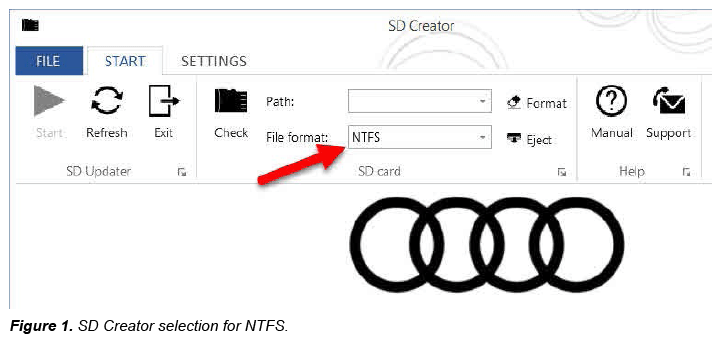
If you want to convert the data on a USB-C stick from FAT32 to an NTFS file system, please refer to the instructions in the attachment.
Please either order the original update medium in advance or download the software with the part number specified in the parts information of the applicable TSB onto a USB-C stick (32 GB) that complies with the USB 2.0 specification using the SD creator. USB-C sticks with a higher storage capacity should not be used as these types of USB sticks have a different formatting process.
Exception : Please use a 64GB USB-C stick for navigation databases. The available space on a 32GB USB-C stick is no longer large enough for some navigation maps.
You can add the vehicle or a demonstration vehicle to your myAudi account and download the navigation data. You should then delete the vehicle from your account.
As the data for all vehicles with MIB3 are the same, they can be re-used until there is new data (new version) in myAudi portal.
The navigation data (for a map update) can usually be installed without deleting anything if the data is newer than those stored in the MMI.
The navigation data (for a map update) can usually be installed without deleting anything if the data is newer than those stored in the MMI.
Procedure for an MIB3 software update:
If you require assistance when working with the diagnostic tester, please refer to TSB 2011732: 00 Software Version Management (SVM), operating instructions.
There are 2 possible test programs for performing a tester-supported update for MIB3:
- "SVM code input" for individual SVM codes
- "SVM - Authorized Multiple Code Entry" for SVM code chains (available since 02/26/2025).
The applicable TSB specifies which program must be used. Please ensure that the SVM code or the SVM code chain is entered correctly (copying and pasting from the TSB is recommended).
Required equipment:
- ODIS Tester.
- SVM Code.
- MIB3 software update on USB flash drive (See Required Parts and Tools or download the software from the MirrorServer using the SD Creator Program).
Time to complete update:
- Approximately 45 to 75 minutes (includes 15 - 45 minutes for the SW update and 30 minutes for the SVM process).
General MMI Software Update Process (Method 1):
- Deactivate the Bluetooth or Wi-Fi connection option in ODIS.
- Connect the diagnostics head with a USB cable to the vehicle.
- Open the "Flash" feature in ODIS. Click on "SVM code input or SVM - Authorized multiple code entry" and "Perform check".
- Enter the SVM code of the update. The system then checks the applicability of the code for the vehicle. The part number of the update medium is also shown on the tester.
- Insert the Update USB flash drive in the USB port located within the center console area of the vehicle:
- The tester automatically guides you through the updating process.
- The program then performs the configuration of the new software and reports the build status back to the server.
- Always follow the commands on the tester screen.
- After the successful update, remember to remove the USB flash drive. It can be used on other vehicles.
If the update is cancelled, proceed as follows (Method 2):
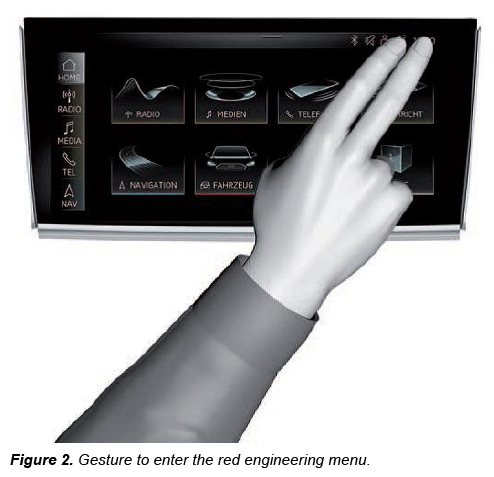
- Enter the red engineering menu by touching the screen with two fingers in the top right corner (Figure 2).
- Use the volume control to navigate the red engineering menu (left and right for scrolling, push to select):
- Select "Update" and the source of the update medium, USB.
- All control units to be updated are shown, scroll all the way down and start the update.
- After the manual successful update, perform the SVM code again so that the ODIS tester can make the necessary configuration and report the new vehicle configuration to the SVM server.
General tips and tricks for MIB3 software updates:
- If the update aborts with a message on the MMI display, the first option is to attempt to continue the update by unplugging the USB stick and plugging it back in.
- Unplug and plug in the USB-C stick a few times. Each time you plug the USB-C stick in, wait two minutes to see if the update continues. The MMI requires a certain amount of time to read and check the USB stick
- The USB stick can then be formatted to NTFS and/or the software can be downloaded to it again from the SD creator.
- You can also try using a different USB stick.
- If the vehicle has more than one USB connection, switch to another.
- A terminal 30 reset of infotainment control unit 5F can also be performed for at least 30 minutes. After doing this, wait until the system has fully started before attempting the update again.
- Repeat the update via the red engineering menu (REM).
- After the update, ensure that you use the SVM code for feedback documentation to complete the update fully.
WARRANTY
This TSB cannot be used for invoicing Method 1
Please use the referring TSBs warranty claiming instructions.
The USB-C stick and downloading the software via the SD creator cannot be invoiced.
The additional work (Method 2) explained in this TSB can be billed for the complaint if required.
| Claim Type: |
|
||
| Service Number: | 9196 | ||
| Damage Code: | 00XX | ||
| Labor Operations: | Update software Method 2 only. Only to be billed if Method 1 is unable to be completed. | 9196 2599 | 70 TU |
| Claim Comment: | As per TSB 2060523/4 | ||
All warranty claims submitted for payment must be in accordance with the Audi Warranty Policies and Procedures Manual . Claims are subject to review or audit by Audi Warranty.
REQUIRED PARTS AND TOOLS
See the referring TSB for the table.
ADDITIONAL INFORMATION
The following Technical Service Bulletin(s) will be necessary to complete this procedure:
- TSB 2047812, 00 SD Creator: how to set up and use the SD Creator for obtaining vehicle software updates via the MirrorServer.
All parts and service references provided in this TSB (2060523 ) are subject to change and/or removal. Always check with your Parts Department and/or ETKA for the latest information and parts bulletins. Please check the Repair Manual for fasteners, bolts, nuts, and screws that require replacement during the repair.
©2025 Audi of America, Inc. All rights reserved. The information contained in this document is based on the latest information available at the time of printing and is subject to the copyright and other intellectual property rights of Audi of America, Inc., its affiliated companies and its licensors. All rights are reserved to make changes at any time without notice. No part of this document may be reproduced, stored in a retrieval system, or transmitted in any form or by any means, electronic, mechanical, photocopying, recording, or otherwise, nor may these materials be modified or reposted to other sites without the prior expressed written permission of the publisher.